
Sequences with fewer than 100 recipients generate 158% more replies than sequences with 500 or more, according to Hunter's State of Email Outreach 2026.
With the average sequence being sent to 449 people, the larger the list size, the less effective the outreach.
This Hunter playbook shows you how to shift from treating large lists as your entire send list to using Discover to create smaller sends that equal more relevant email outreach.
What you'll do
- Part A: Use Discover filters and the AI Discover Assistant to find companies that match your ideal customer profile (ICP)
- Part B: Use Sequences reply status to remove bounced contacts and anyone who has already replied from your previous sequences
Why this matters
A common list-building mistake is running a Discover search, getting 800 companies back, and treating the full list as your sequence. Or adding 600 contacts from an older spreadsheet and sending emails to all of them.
Bigger lists feel like more chances of a reply - they’re not.
While a single message sent to 800 people can't speak specifically to anyone, a single message to 100 people who share an industry, company size, and problem can speak directly to them all.
100 is the starting point: small enough to keep the message specific, large enough to see whether the targeting and messaging are working, and scalable from there.
Part A: Start with Discover
Don’t try to email every possible company in your market - find the segment you can win.
These are companies that have the problem you solve, the budget to act on it, and enough in common that one well-written message reads as relevant to all of them.
Discover is free to search. Credits are spent only when you reveal an email address, so you can filter, test combinations, and refine as many times as you need before spending anything.
Step 1: Start with your existing customers
Before opening Discover, look at your best current customers.
Export your top 10 to 20 and find the patterns:
- Industry
- Company size
- Technology stack, and
- Role of the person who bought.
Those patterns are your ICP hypothesis.
Starting from real customers is faster than starting from assumptions, and Discover makes it straightforward to find lookalike companies once you know what you're looking for.
Hunter's guide to building a lead list shows you great ways to use your customer data here.
Step 2a: Apply industry and company size
Open Discover from your Hunter dashboard, then apply the industry filter.
Hunter has countless categories, so use the narrowest one that fits.
Start specific and loosen only if you need to.
Then filter by headcount. For small businesses, set headcount to 10 to 50 to keep enterprise accounts out. Mid-market sellers typically want 100-500.
Step 2b: Use the AI Discover Assistant to describe your ICP
Instead of manually stacking filters, you can also describe your target companies in the AI Discover Assistant.
Type a plain-language description of the companies you're looking for, like: "B2B SaaS companies with 20 to 100 employees in the US that are actively hiring sales staff."
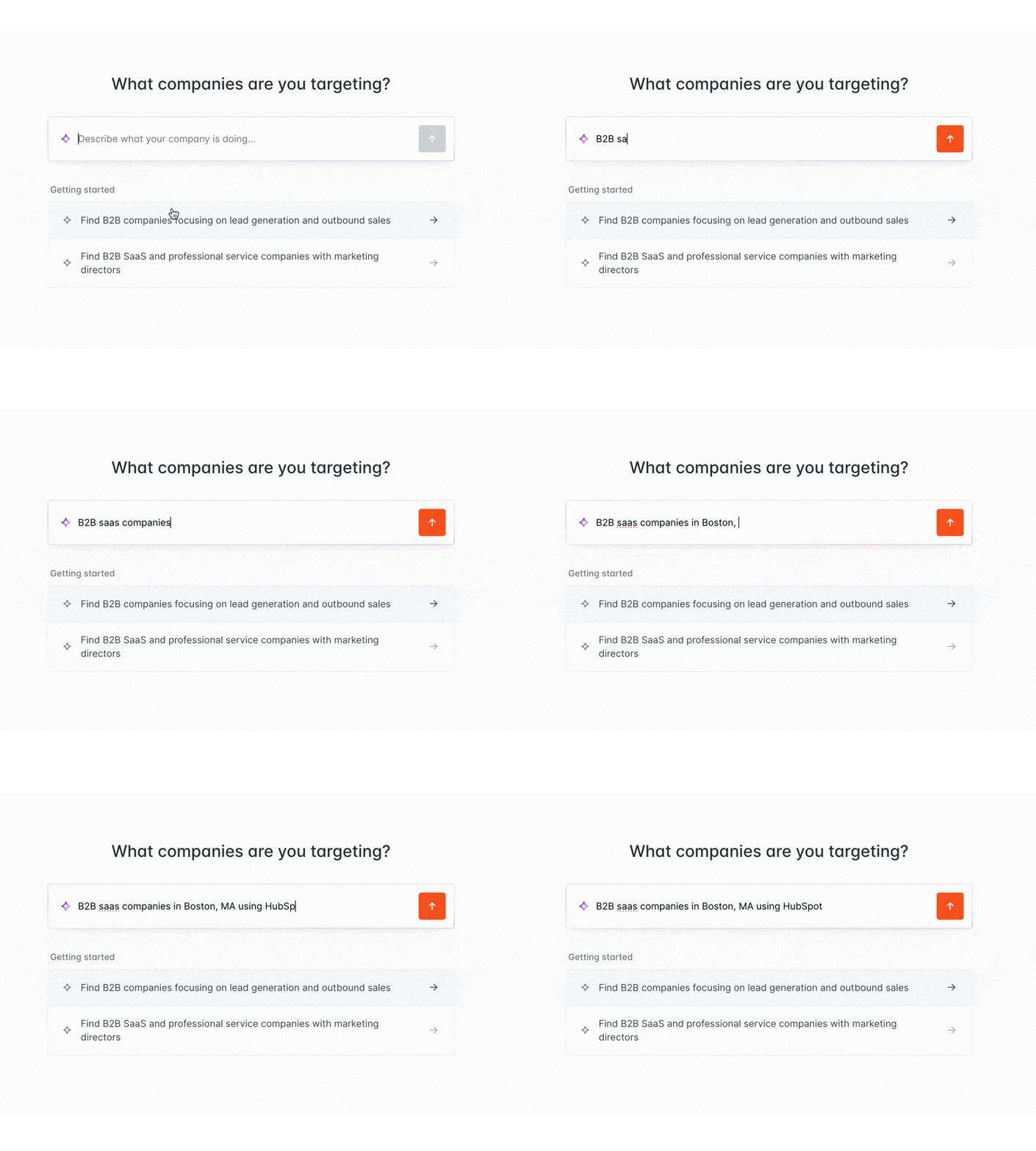
The AI Discover Assistant translates this description into filters.
You can adjust or add to them manually from there.
It surfaces filter combinations you might not have thought to apply yourself, and suggests refinements once the first results appear.
Step 3: Intent signals: hiring and technology
Companies actively hiring for roles related to what you offer are signaling an active need, and give you another way to create stronger lists.
A company hiring a Head of Sales is investing in growth, while one hiring a CRM administrator needs better tooling.
- Hiring
To find these companies, you can create a Signal based on hiring activity by:
- Visiting Signals -> “+ New Signal” -> Job Openings
- “Companies that have a job opening” -> Complete search using your ICP
- Save your search and receive updates via email
- Technology
On paid plans, you can also filter by technology stack.
Technology is the filter that connects company fit to company behavior.
Modgility, a RevOps consultancy, uses this as its primary qualifying signal.
A manufacturing company in their target region using HubSpot is a warm prospect because they already have the technology and can get more value from it, which is exactly what Modgility helps with.
As Keith Gutierrez, their VP Revenue Operations, explains:
"Hunter gives us an opportunity to really identify those people and kind of verify further... narrowing down based on technology, or by specific job title, by employee size, which makes it a lot easier from a sales perspective to identify the target audience and be a little more proactive in warm outreach."
Keith Gutierrez, VP Revenue Operations, Modgility
Step 4: Exclude those who aren't in your ICP
Documenting who isn't your target is just as important as knowing who is.
Before you move to contacts, apply exclusion filters to remove companies that appear to be a fit on the surface but aren't.
Common exclusions include companies:
- Too large (long procurement cycles, wrong buyer)
- Too small (can't afford your pricing)
- In the wrong location
- Already using a competing tool that makes your offer redundant
Hunter's help article on tailoring your Discover search covers how to add keywords and exclusion filters in practice.
Landon Murie at Goodjuju works through his property management list this way.
"I first go through the keywords and include or exclude filters in Discover. I add a negative keyword, and I can see the list getting cleaner and cleaner. Seeing some of our clients appear in the results tells me my targeting was exactly right." — Landon Murie, Founder, Goodjuju
Step 5: Check your result count
With more than 300 companies, you have a starting point to turn this into a smaller company list by applying the sort of logic that Landon and Keith follow.
You’ll end up with multiple lists of companies in Leads, based on your ideal customer profile, clearly split so you can message each list with its specific qualities.
Aim for roughly 50-100 companies per list, before moving to 3-4 lists of contacts once you identify the decision-maker, pain-feeler, blocker, and champions in your target companies.
It means you can still prospect your market, but in a more nuanced way.
Step 6: Move from companies to contacts
Once your company list is the right size, you need to build contact lists of 50-100 contacts.
Apply the department and seniority filters to select the right people at each company, and reveal only the contacts you intend to email.
Build your lists around different personas:
- Decision maker/budget holder: The number one person who will approve you.
- Pain feeler: The person who feels this pain day to day.
- Blocker: The person who competes for your budget or fears it's not a fit for the business.
- Champion: The person who will support you to close this deal.
Before your sequence launches, verify every address in the Audience tab to catch invalid emails before they become bounces.
Each revealed email costs one credit. Verification costs 0.5 credits per address. Any leads that are found in Hunter will be automatically re-verified every month.
Part B: Clean lists with Sequences replies
List quality reply rates and whether your emails reach the inbox at all.
Sending to unverified contacts or retrying bounced addresses damages your sender reputation with every send.
If your bounce rate is sitting at the 3.6% average in Hunter's State of Email Outreach 2026, the quality of your lead list is harming you.
The good news is that if you've run sequences, your data tells you exactly who to remove.
Step 1: Filter Leads by previous sequence
Go to Leads:
- Filter > Sequence: Your Q1 Month 1 sequence’s name
- Filter > Sending Status > Opened, Clicked, Replied, Sent, Bounced, and so on.
Step 2: Remove contacts who bounced
- Filter > Sending Status > Bounced.
Every contact here had an email that failed to deliver, so you need to remove them.
Retrying a bounced address adds another bounce to your domain reputation.
If a company is still in your ICP, use Domain Search to find a verified alternative contact before emailing again.

Step 3: Remove contacts who already replied
Filter by Sending Status > Replied.
These contacts are already in a conversation and don’t belong in your next sequence.
Move them to a separate follow-up workflow and keep your new list clean.
Step 4: Prioritize opened and clicked
If you're building a follow-up sequence for the same audience, put contacts who opened or clicked but didn't reply at the top of your list.
They're warmer than contacts who never responded, and worth a fresh message before you move on to new names from Discover.
How Hunter users do this
Jonathan Del Gatto
Jonathan Del Gatto runs a video production studio and teaches outreach to hundreds of video professionals through The Director's Cut.
His send volumes are small, 30-60 contacts a month, because that's the scale at which every message can be specific to the person receiving it.
He uses Discover to find companies in the specific verticals where his studio has depth, filters to his target criteria, and deletes any contact that doesn't meet them before the sequence runs.
"I would take a good list of 10 people over a bad list of 1,000 every day." Jonathan Del Gatto
From that small, filtered volume, his studio consistently wins enterprise brand clients. Jonathan isn't trying to find fewer clients.
He's running a process that works at a manageable scale, then repeating it.
What this looks like when it's working
You have multiple lists of 100 contacts built around a clear segment of your ICP and a persona.
Every company fits a specific industry, size, and set of characteristics that match what you offer. The contacts within those companies have verified email addresses, the correct job titles, and no history of bounces or replies to a previous sequence.
You send to that list, learn who replies and why, then build the next 100 from the same filters with what you've learned applied.
To start:
- Open Discover and either apply your industry and company size filters or use the AI Discover Assistant to write it in natural language
- Check Sequences for any bounced or replied contacts to remove before you build your next sequence.
- Use our calculator below to play out the numbers of companies, personas, contacts, and lists you’ll need to build in Hunter.
Put all of this into action today with Hunter's Outreach Planner:



 Send cold emails with Hunter